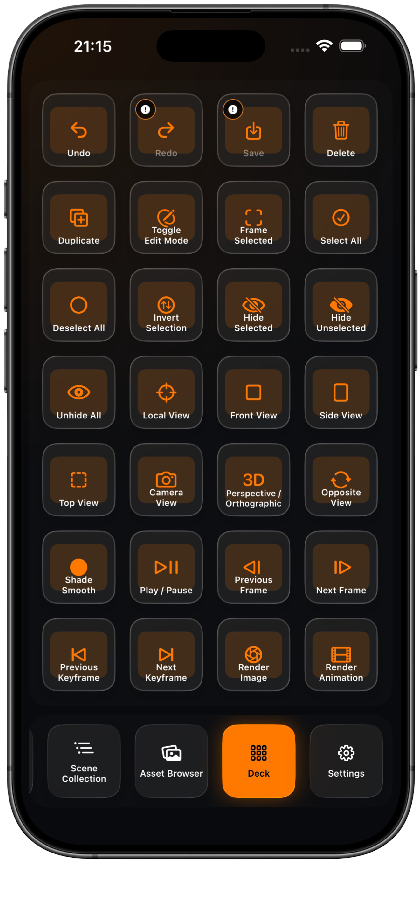
Command Deck and configurable screens
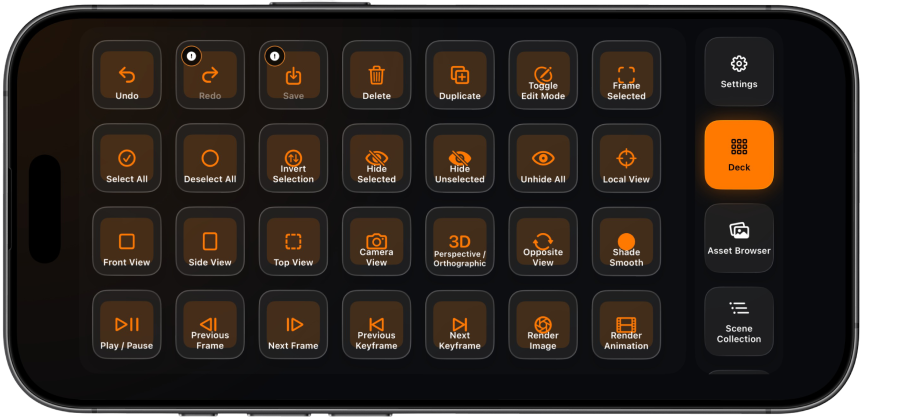
Arrange focused command controls for the Blender tasks you use most.
GCDECK / IPHONE + BLENDER
A native iPhone control surface for Blender.
Use contextual commands, configurable screens, scene tools, assets, timelines and workflow macros while keeping the main Blender workspace visible.
GCDECK IN ACTION
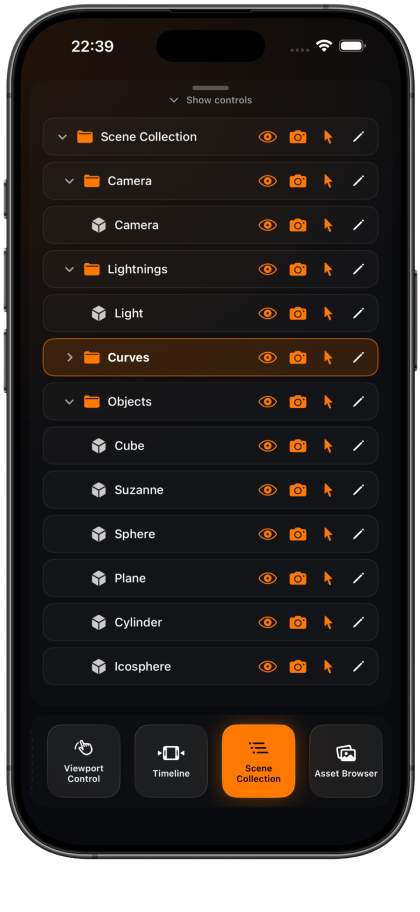
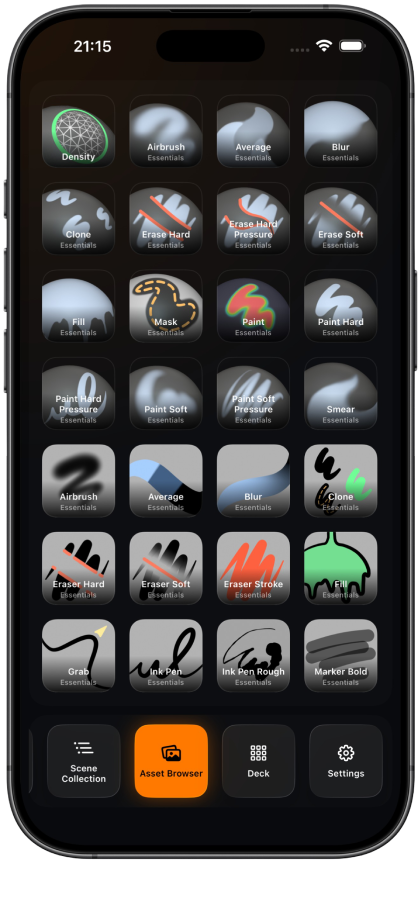
Move between command controls, Scene Collection and Asset Browser from one focused iPhone interface.
CAPABILITIES
GCDeck keeps secondary controls on the iPhone while Blender remains the primary workspace.
Arrange focused command controls for the Blender tasks you use most.
Controls adapt to the active Blender mode and available actions.
Run reusable multi-step Blender workflows from a focused mobile interface.
Browse collections and objects with visibility, camera and selection controls.
Reach supported assets and brush workflows from the iPhone.
Navigate and operate compatible Blender viewport actions by touch.
Control playback, frames and keyframe navigation without covering Blender.
Follow render state with notifications and optional Live Activities.
Use Bonjour, QR pairing and saved credentials for local reconnection.
ARCHITECTURE
GCDeck has no user account, advertising, analytics, tracking or Giesa Core cloud backend. App and Blender data travel directly between the user’s devices on the selected local network.
Connections are authenticated, but the TCP transport is not encrypted with TLS. Use GCDeck only on a trusted local network and never expose the add-on port to the internet.
REQUIREMENTS
QUICK START
Download the verified GCDeck add-on ZIP from the Download page.
In Blender, open Edit → Preferences → Add-ons and select Install from Disk.
Choose the ZIP, enable the add-on and open the GCDeck panel in the 3D Viewport sidebar.
Start the add-on server and connect the iPhone to the same trusted local network.
Open GCDeck, allow Local Network access and select the discovered computer.
Scan the QR pairing code, then wait for authentication and the first state sync.
ADD-ON
GCDeck add-on 0.9.0 contains its complete Python source and GPL-3.0-or-later license. The exact published ZIP has been installation and connection tested with Blender 4.5+ on Windows and macOS.
TROUBLESHOOTING
Confirm that both devices use the same non-guest network, the add-on server is running, Bonjour or mDNS is available, Local Network access is enabled for GCDeck and VPN isolation is disabled.
Allow Blender and the GCDeck add-on through the Windows or macOS firewall. Bonjour discovery uses mDNS on UDP 5353; also allow the TCP port displayed by the add-on. Never expose that port to the public internet.
Generate a new pairing session in Blender and scan the new QR code. Do not reuse, copy or send pairing secrets to support.
Confirm that Blender and the add-on server are still running. Reopen GCDeck to resynchronize. If credentials changed, forget the saved computer and complete pairing again.
Check the active Blender mode, selection, camera, saved-file state and whether a compatible editor is open. Context-aware controls may be disabled when Blender cannot perform the action.
Check Notifications and Live Activities permissions, then reopen GCDeck to resynchronize. iOS may suspend background activity, which can interrupt status delivery.
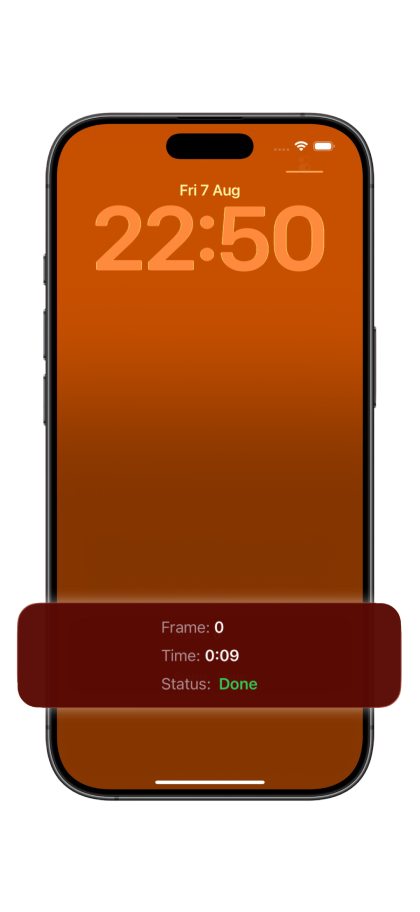
RENDER STATUS
GCDeck can surface render progress and completion status through notifications and an optional Live Activity. Delivery may be interrupted if iOS suspends the app in the background.
TESTFLIGHT / ACTIVE
GCDeck testing is currently active through Apple TestFlight. Access is limited and builds may expire or differ from the App Store release. Contact Support to request access.
Blender is a trademark of the Blender Foundation. GCDeck is an independent Giesa Core product and is not affiliated with, sponsored by or endorsed by the Blender Foundation.